Setting Allowed Versions
This step-by-step guide will walk you through configuring allowed Minecraft client versions in the Goxy Dashboard. This lets you define which versions players can use to connect to your network. Ready to customize version access and ensure a smooth experience for your players?
Configure allowed client versions in minutes and ensure compatibility with your network!
Before You Begin
Version settings determine which Minecraft client versions players can use to connect to your network. These are set network-wide, not per server or domain.
Goxy Dashboard settings do not replace plugins like ViaVersion. You must still install ViaVersion on your target servers if you want to support a broader range of versions.
Version Configuration
Step 1: Go to the Versions Tab
- In the Goxy Dashboard, go to your network settings.
- Select the
Versionstab.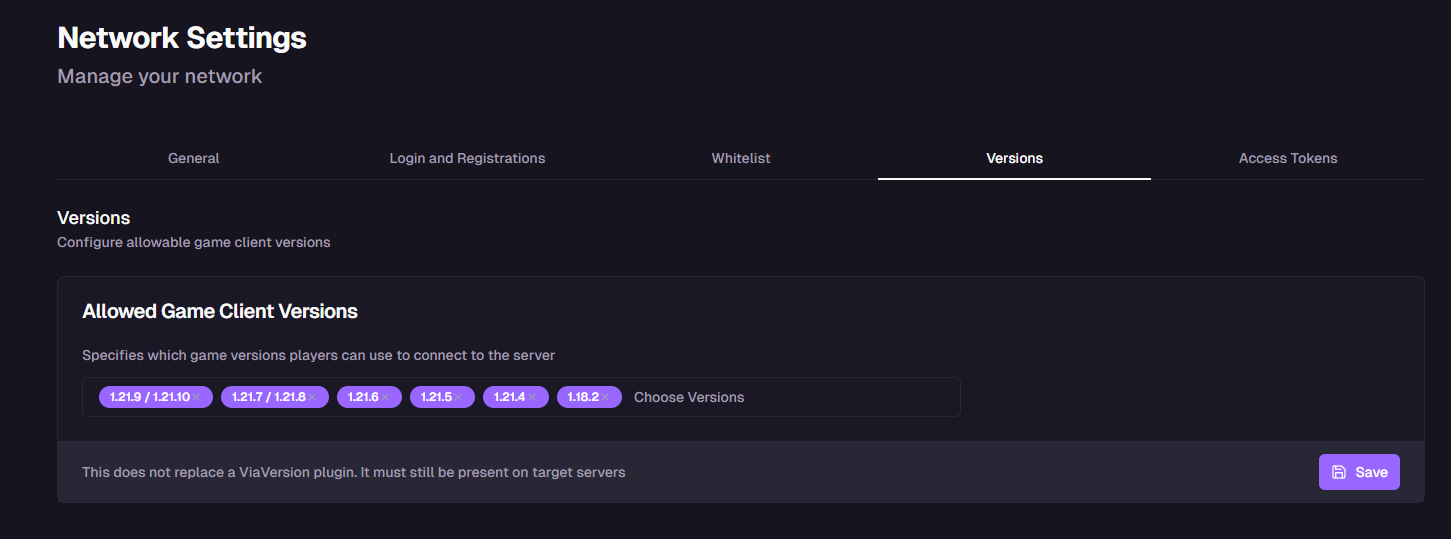
- You'll see a list of options to configure allowed client versions.
Step 2: Select Allowed Client Versions
- In the
Allowed Client Versionssection, select the versions your network should support. - Check the versions you want to allow players to join with.
⚠️Important: Compatibility
Ensure selected versions are compatible with your target servers and plugins like ViaVersion.
- Click the
Savebutton.
Wide Compatibility
Allow players to join from various Minecraft versions.
Easy Setup
Select versions in just a few clicks - no complex configuration.
Better Experience
Tailor versions so players can join without issues.
Links
Contact us!
We respond to all messages within 24 hours on Discord.
Configure Versions & Open Your Network to Players!
Join Goxy and deliver a seamless experience!
REGISTER FOR FREE